For true "set it and forget it" security, configure ProximityLock to start automatically when you log in to your computer. This ensures you're always protected, even after restarting.
The simplest way to enable auto-start is right in the main ProximityLock window:
That's it — the change takes effect immediately. ProximityLock will register itself to launch automatically whenever you log in.
Note: macOS may ask you to finish enabling this in Login Items & Extensions. If that happens, follow the prompt and complete the approval there.
If you prefer to configure this directly in macOS, or if you need to troubleshoot the in-app toggle, you can still add ProximityLock manually:
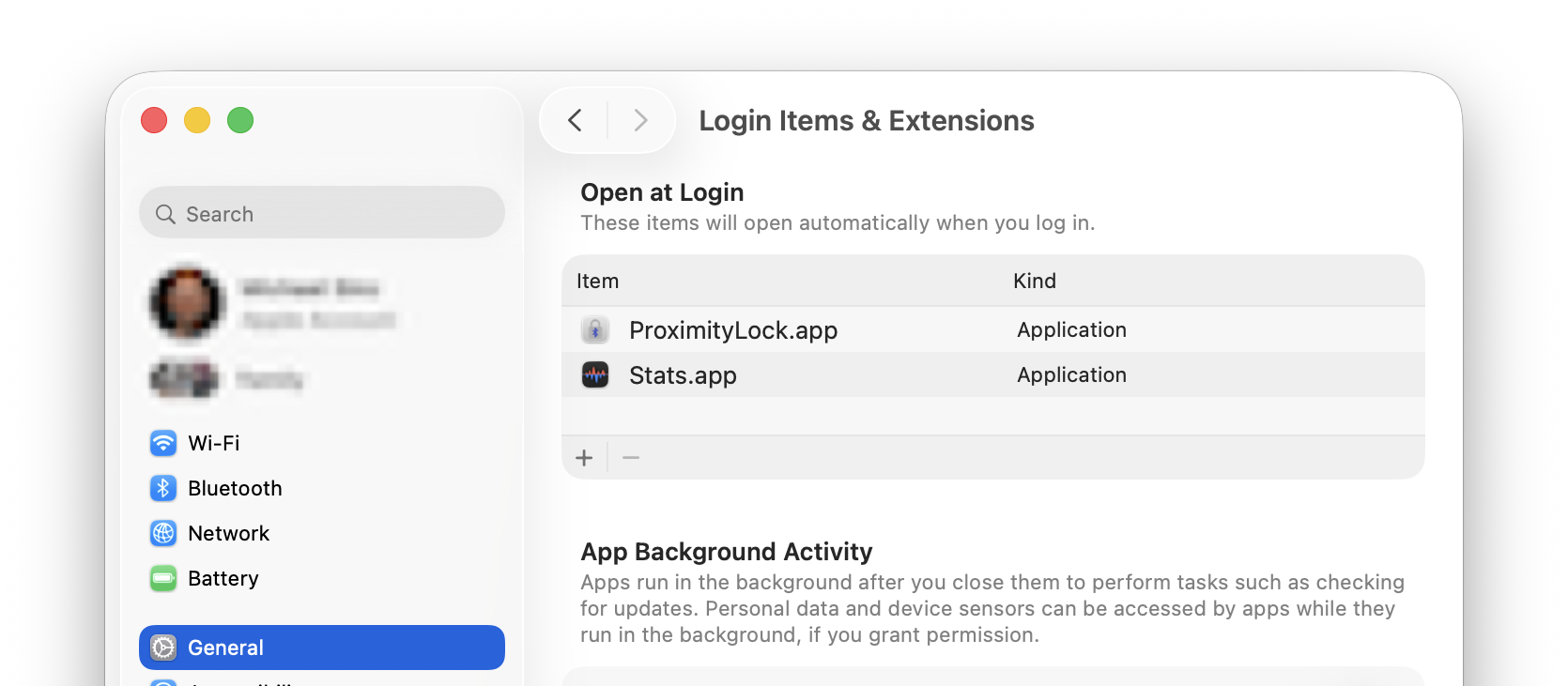
ProximityLock will now appear in your Login Items list and will launch automatically whenever you log in.
If you want to stop ProximityLock from starting automatically:
If you set it up manually in System Settings, you can also remove it there using System Settings → General → Login Items & Extensions and the − (minus) button.
ProximityLock remembers whether its window was open or closed when you last quit the app:
Pro Tip: For unobtrusive background monitoring, close the ProximityLock window (⌘W) before logging out. ProximityLock will start minimized to the Dock, monitoring quietly in the background. You can always click the Dock icon to reopen the window.
ProximityLock also remembers whether monitoring was enabled or disabled:
This means once you configure ProximityLock and enable monitoring, it will continue protecting you automatically across reboots and logins.
To verify auto-start is working:
Note: macOS may display a notification the first time an app launches at login. This is normal. Just part of macOS security features.
© 2025-2026 - Michael Sinz