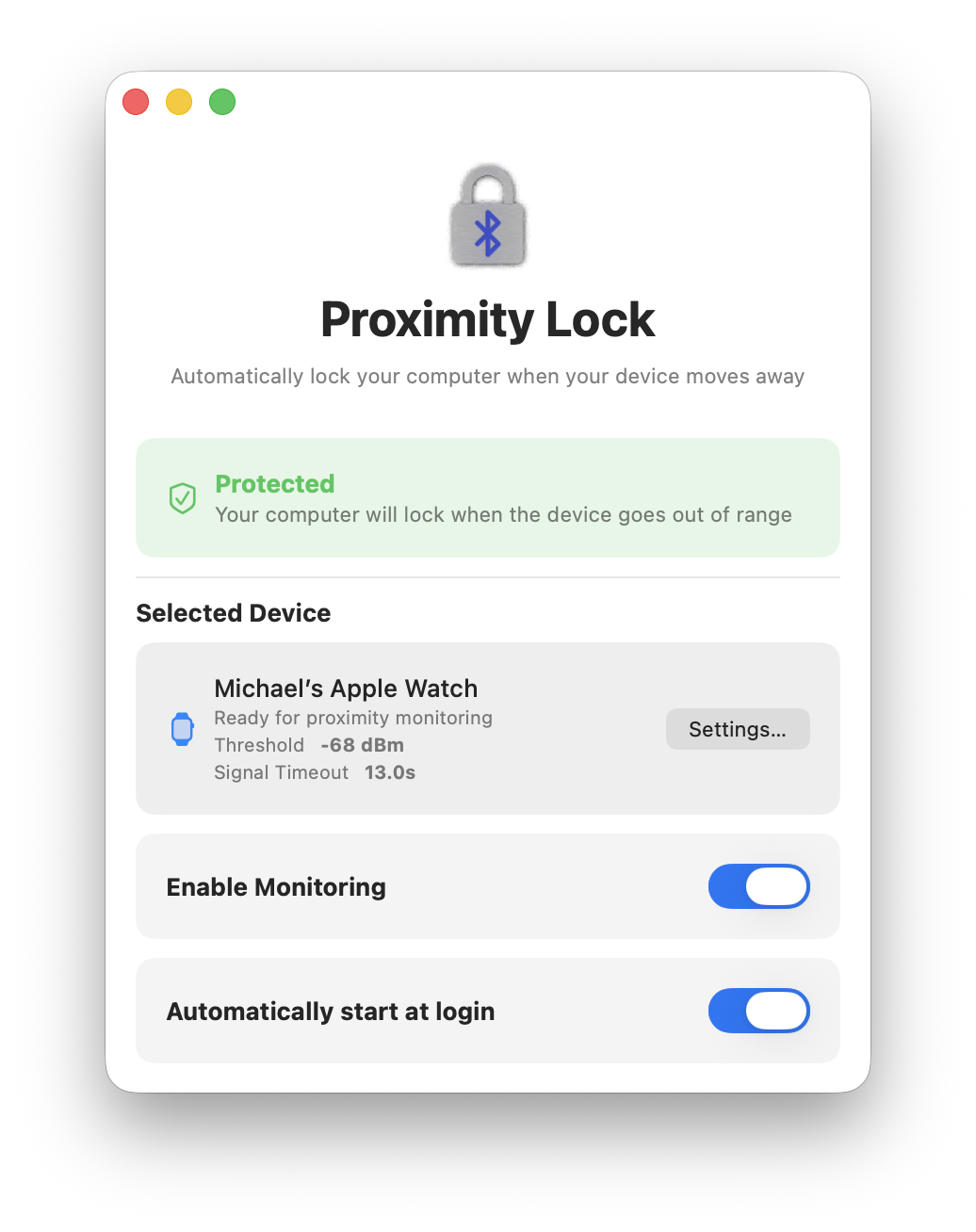
Once configured, ProximityLock operates automatically in the background. This page explains the various indicators and features you'll encounter during day-to-day use.
The main window provides a clean, simple interface with four main sections:
The main window provides clear visual feedback about your protection status through the colored status section at the top. The dock icon also reflects the current state:
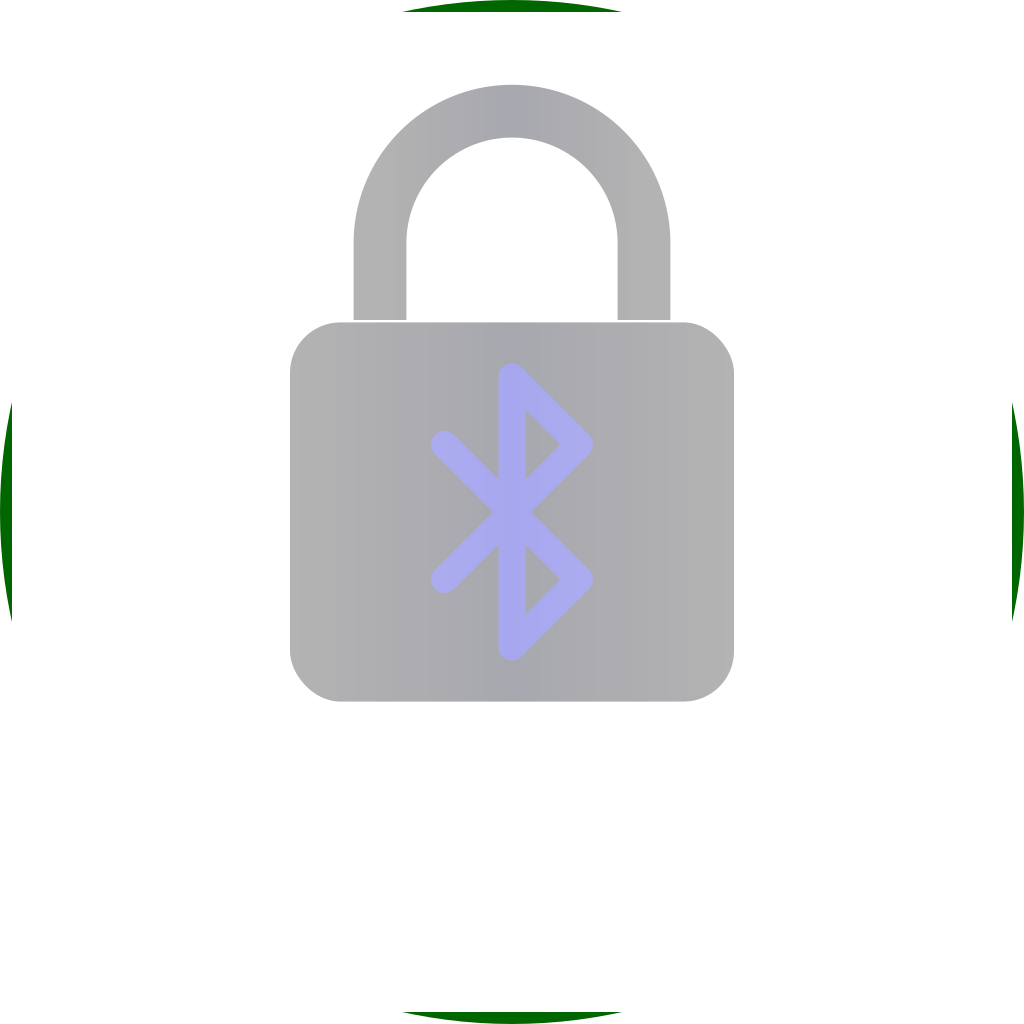 Protected (Green)
Green background with shield icon in the main window.
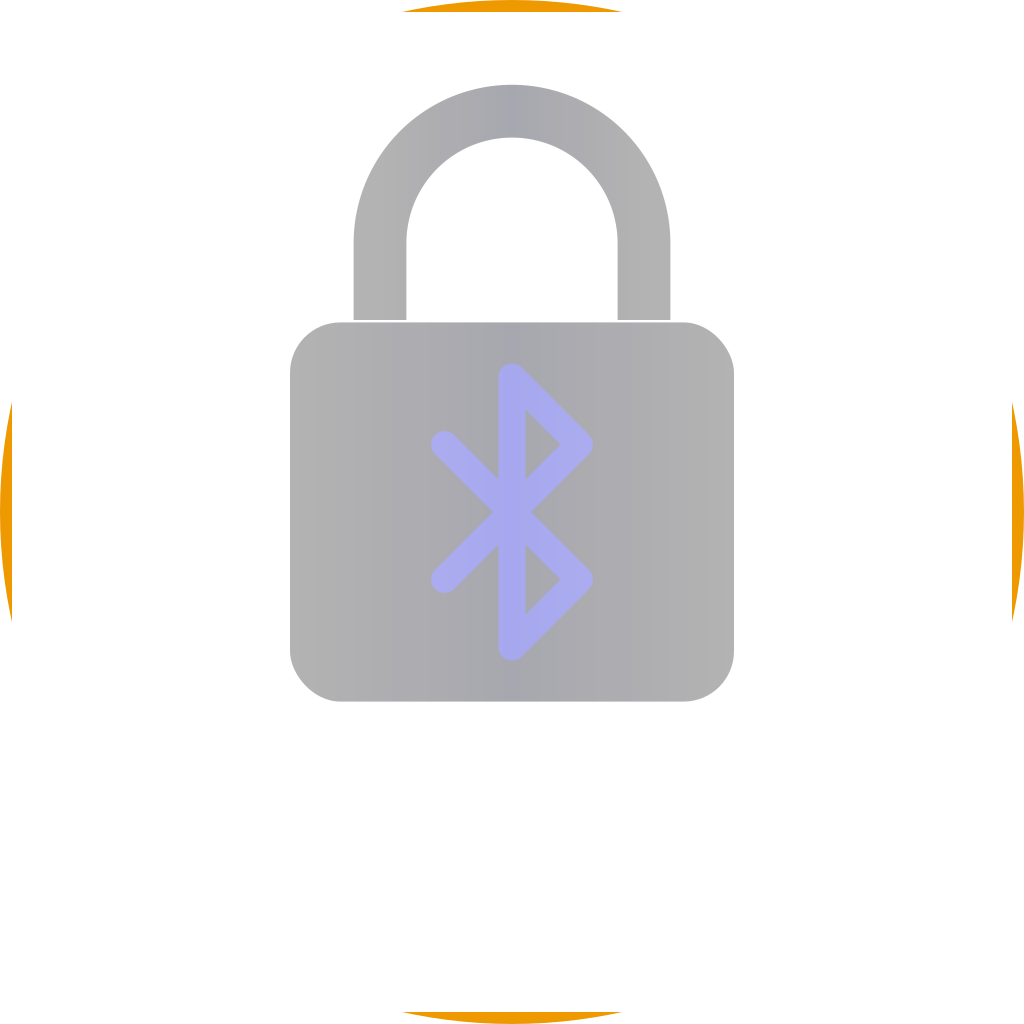 Discovering (Orange)
Orange background in the main window.
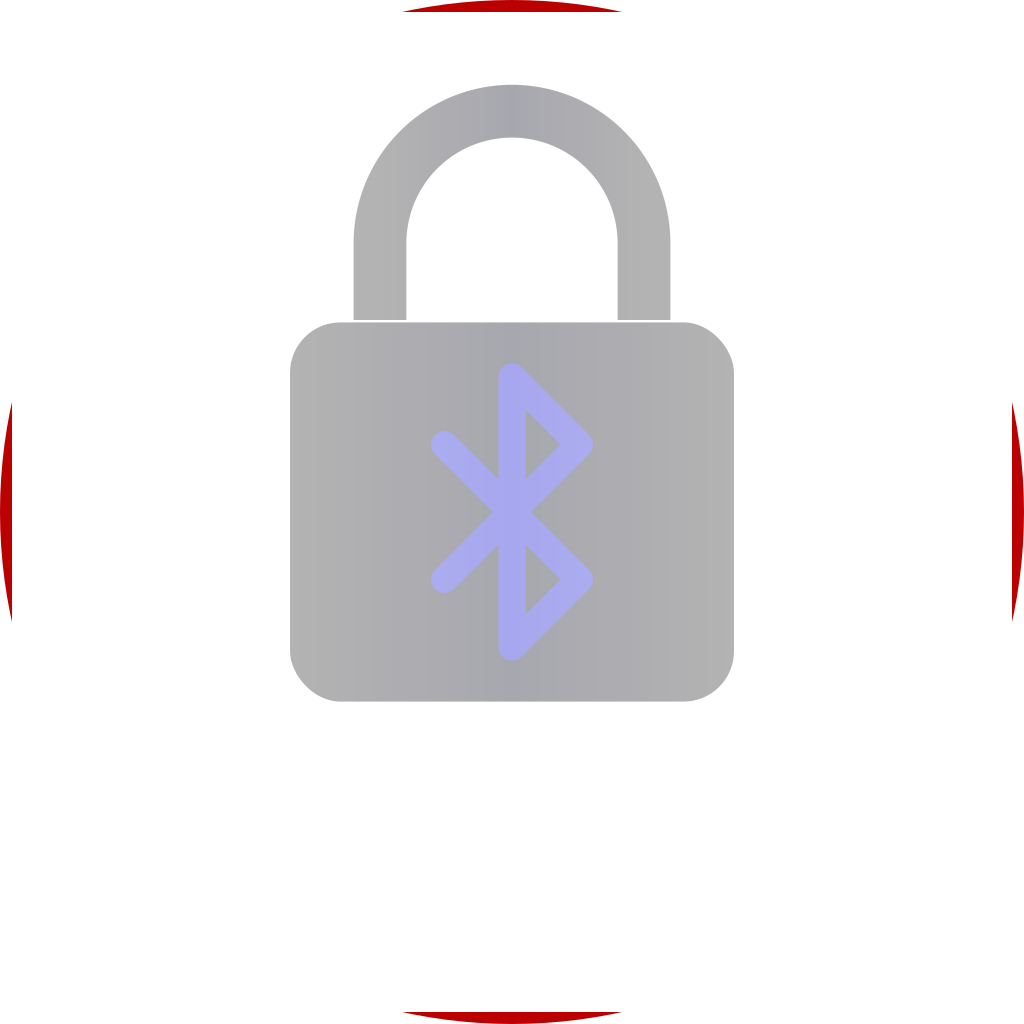 Not Monitoring (Red)
Red background with slashed shield in the main window.
 Device Out of
Range (Yellow)
Device Out of
Range (Yellow)Yellow background with warning symbol in the main window.
ProximityLock's dock icon changes to reflect the current security status. Even with the window closed, a quick glance tells you everything:
DisabledMonitoring is OFF |
DiscoveringSearching for your device |
ProtectedDevice in range, computer protected |
LockingDevice out of range (rarely visible) |
Note: The "Locking" icon appears for only a split second before your screen locks, or if something goes wrong with the locking process (permission issues, etc.). If you see it for more than a moment, check your permissions.
ProximityLock doesn't need its window open to work. It's perfectly happy monitoring in the background. Close the window and it'll keep protecting you:
Window State Memory: ProximityLock remembers whether its window was open or closed. If you close the window before quitting or logging out, it will start closed next time. Perfect for unobtrusive background monitoring.
ProximityLock includes several testing features accessible from the Help menu:
Verifies that notification permissions are working correctly. You should see a test notification appear on your screen.
If the notification doesn't appear:
Immediately locks your screen to verify that the locking mechanism is working. Save your work first!
If the lock doesn't work:
The Enable Monitoring toggle switch in the main window controls whether ProximityLock is actively monitoring:
When to turn monitoring off:
Monitoring State Persists: ProximityLock remembers whether monitoring was on or off. Quit the app or restart your computer with monitoring enabled? It'll resume automatically when the app launches.
Click the Settings... button next to your device name to quickly:
ProximityLock sends notifications to keep you informed:
When your computer is locked because your device went out of range, you'll receive a notification confirming the lock occurred. This helps you understand when and why your computer was locked.
If ProximityLock tries to lock your screen but fails (due to permission issues), you'll receive a time-sensitive notification with instructions on how to fix the problem. These notifications are marked as high-priority so they won't be missed.
ProximityLock is smart about your computer's sleep state:
Battery Efficiency: ProximityLock uses passive Bluetooth scanning, which is very battery efficient. We designed it to automatically pause during sleep, ensuring minimal battery impact on MacBook laptops.
ProximityLock supports standard macOS keyboard shortcuts:
For more answers see the FAQ page.
© 2025-2026 - Michael Sinz